Sandbox Setup Guide
Connect to the Plaid Sandbox in under two minutes.
Step-by-Step Walkthrough
Install the Extension
Add the SheetLink Chrome extension from the Chrome Web Store. Click the SheetLink icon in your browser toolbar to open the popup.
Click "Connect to Sandbox"
In the extension popup, click "Connect to Sandbox". This will open Plaid Link in a new window.
Select Any Institution
When Plaid opens, select any institution (for example, Chase or Bank of America).You're in Sandbox mode. All data is simulated.
Enter Sandbox Credentials
When prompted for credentials, use:
user_goodpass_good(415) 555-0123123456Sync Sample Data
Once connected, click "Sync Sample Data" to populate your Sheet. You can reset anytime from the options page.
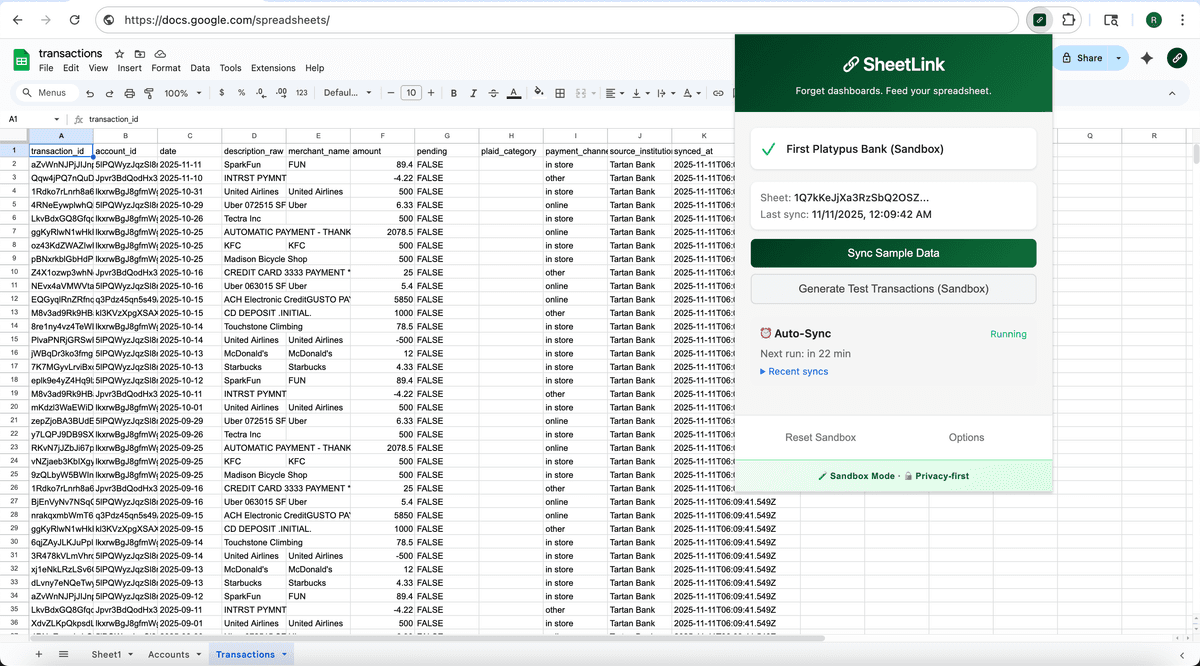
Real sandbox data flowing from Plaid into Google Sheets with SheetLink. No dashboards, just your spreadsheet.
Important Notes
- 💡
Fake Data: All transactions in sandbox mode are fake test data from Plaid Sandbox. No real banking information is involved.
Reset Anytime: You can reset sandbox connections from the extension options page by clicking "Disconnect" and reconnecting.
Testing Only: Sandbox mode is for testing SheetLink's features before connecting real bank accounts in production.
Troubleshooting
Sandbox toggle not visible?
Make sure you're using the latest version of the extension. Check the Chrome Web Store for updates.
Plaid Link not opening?
Make sure you have the latest version of the extension installed. Try reopening the popup and clicking "Connect Account" again. If the issue persists, check the browser console for errors (right-click the extension popup → Inspect).
Transactions not syncing?
Ensure you've selected a Google Sheet and granted the extension permission to write to it. Check the extension options page to verify your Sheet ID is set correctly.
Ready to Connect Real Banks?
Get SheetLink and sync your real bank accounts to Google Sheets. Free forever for the last 7 days of transactions.